How Business Students Can Easily Turn Tabular Images Into Editable Data
Learn how to convert tables from images into editable Excel data using Excel’s built-in tools or online converters, with simple tips for accurate results.

If you are a business student, you have to deal with tabular data a lot.
When working through a finance case study, a marketing research report, or an economics article, you know the frustration.
It’s the table you need: a balance sheet, a market share breakdown, or a demand schedule, all locked inside an image. The data is right there, visible, but not editable or clickable.
And retyping it isn’t just tedious. For a business student, it’s risky too. One mistyped figure in a ratio analysis or a financial model may quietly corrupt your entire assignment. Ten minutes of copying can become an hour of troubleshooting.
However, that’s largely avoidable! You can reduce the amount of manual typing required.
There are two easy ways to turn a tabular image into editable Excel data, and this guide walks you through both.
A 2-Minute Image Prep Checklist (Before conversion)
This is the part many students skip. It’s one of the biggest factors in conversion quality.
The image you feed determines the data you get out. If you can’t read a figure when you zoom in, neither can the software.
Spend two minutes on this checklist before converting your image:
Take the photo directly overhead, not at an angle. If the image isn’t straight, the rows and columns may appear distorted.
Light the picture evenly. Avoid shadows from your hand or a page curl. Glare on glossy pages is a classic culprit for unreadable cells.
Crop the image to just the table. Cut off page margins, captions, footers, or any surrounding paragraphs. Extra text means a higher chance of extra errors.
Upload the image in the highest resolution possible. A sharp screenshot will beat a blurry photo all the time.
A flat, well lit, and tightly cropped image converts cleanly most of the time. However, a crooked photo may require heavy cleanup and manual editing, no matter which conversion method you choose.
Methods for Converting Tabular Images into Editable Data
There are two simple methods that can be used to turn tabular images into Excel data that is editable and usable. The first method uses a feature that is available in Excel itself. The other method can be used to perform conversion online.
Let’s explore both of them one by one.
Excel's Built-in "Data from Picture" Feature
If you have a recent version of MS Excel that supports “Data from Picture,” then you can use this conversion method.
The step by step process is given below:
Once you have captured a quality image, launch the Microsoft Excel app on your PC/laptop. Open a blank workbook.
Proceed to “Data” on the top bar menu. Here you’ll see the “From Picture” option. Click it and move forward with one of the two options: ‘Picture From File’ or ‘Picture From Clipboard’, depending on where your picture is available.
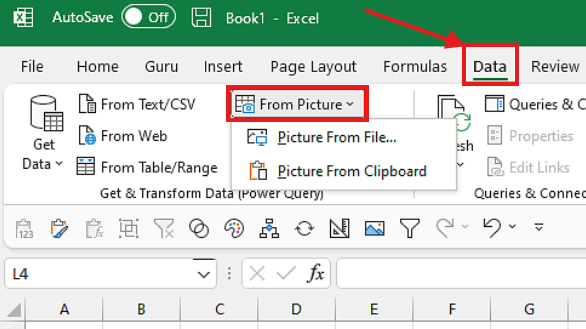
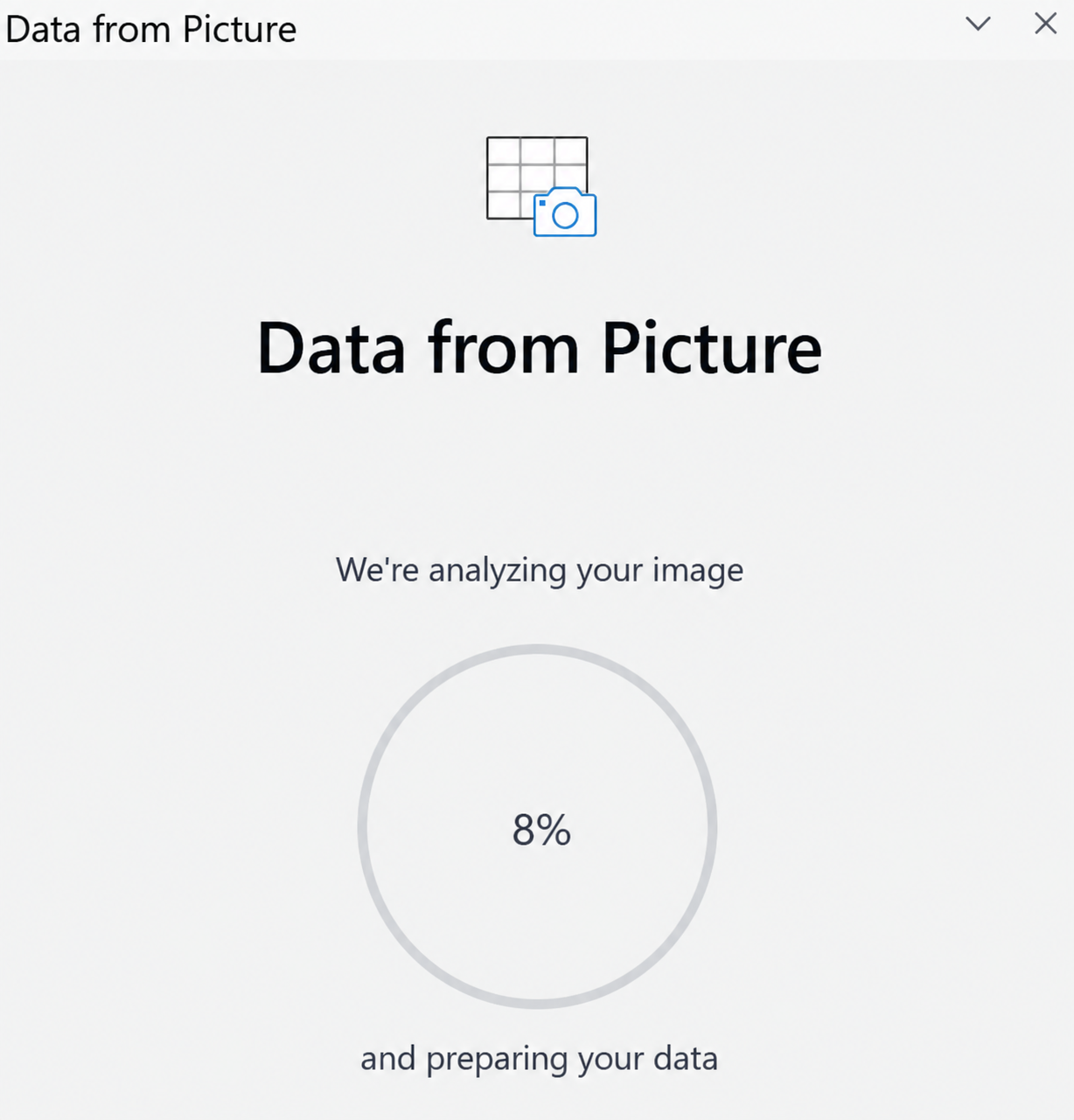
When you upload the image using one of the options, a dialog box will appear. Excel starts processing the image, and you may see something like this on your screen:
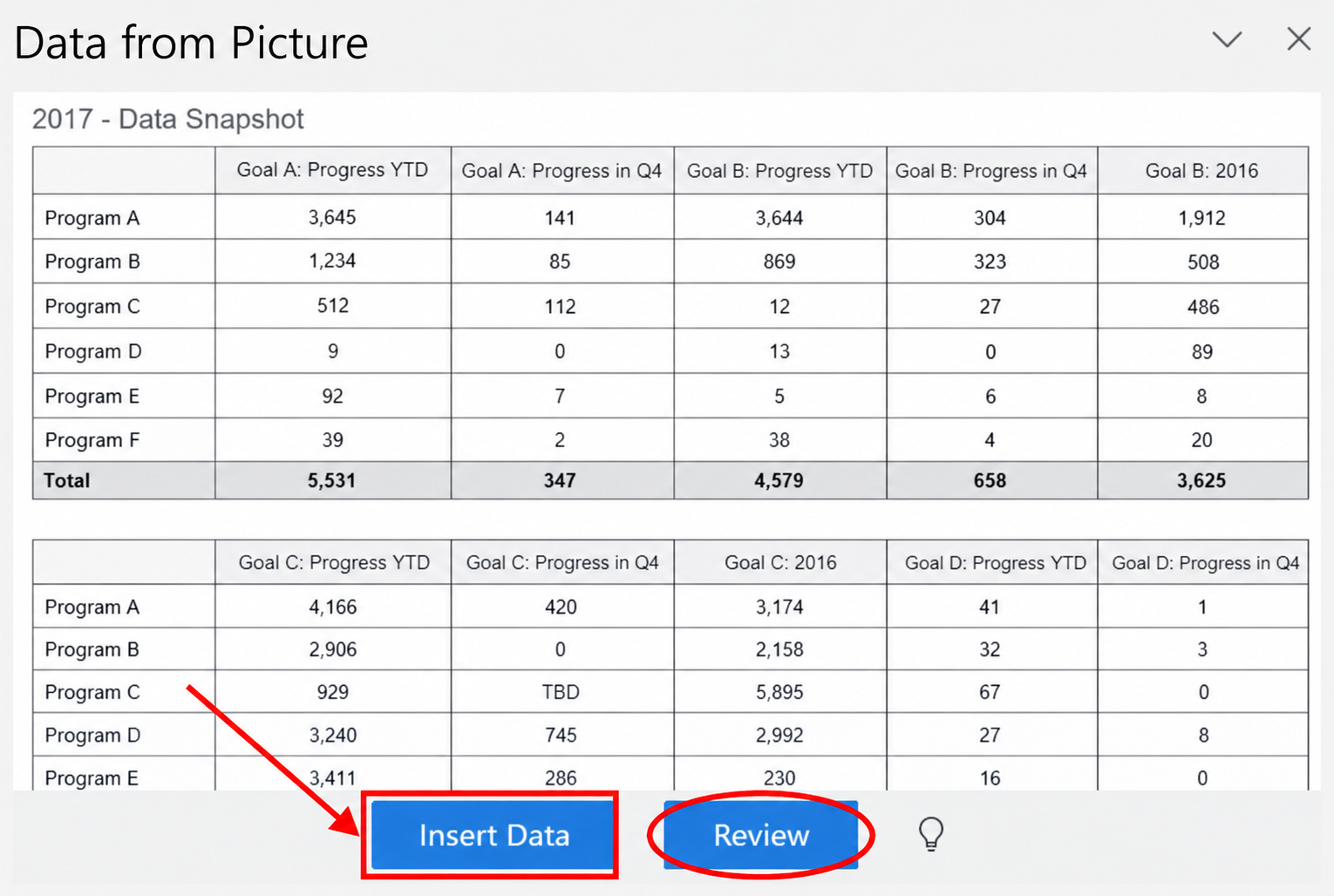
Once the processing is completed, the “Data from Picture” window will pop up. From here, you can review the data, make any necessary changes (that need to be revised), and click on the “Insert Data” button to import the tabular data into the Excel file.
This method works best when:
You already have an active Microsoft 365 subscription (many universities provide one to their students through their IT portal).
You want to review or update any information before converting it.
You only need to convert a single table and want everything inside Excel (without any third party tool).
Limitations:
The “Data From Picture” feature is locked behind a Microsoft 365 subscription
It doesn’t support all languages. So, it may not handle most asian/arabic language scripts well, which may lead to poorly extracted data.
It may take a lot of time when you need to convert images in bulk, as it processes only one image at a time.
Online JPG to Excel Converter
What if you don’t have a Microsoft 365 subscription? Maybe you are on a library computer, an older version of Excel that doesn’t support “Data from Picture” feature, or just on your phone. In this case, you can rely on JPG to Excel converter to extract tabular data from images.
You need to follow the given process:
Access an online JPG to Excel converter on your device. (We also used one to demonstrate the following steps)
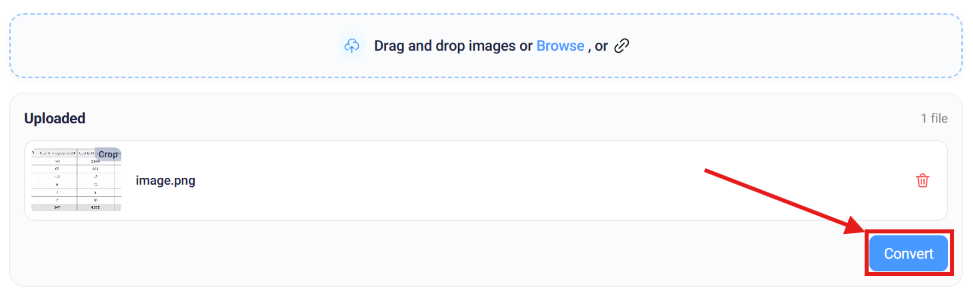
Upload the image (through drag and drop, browse, or paste options) you want to extract data from.
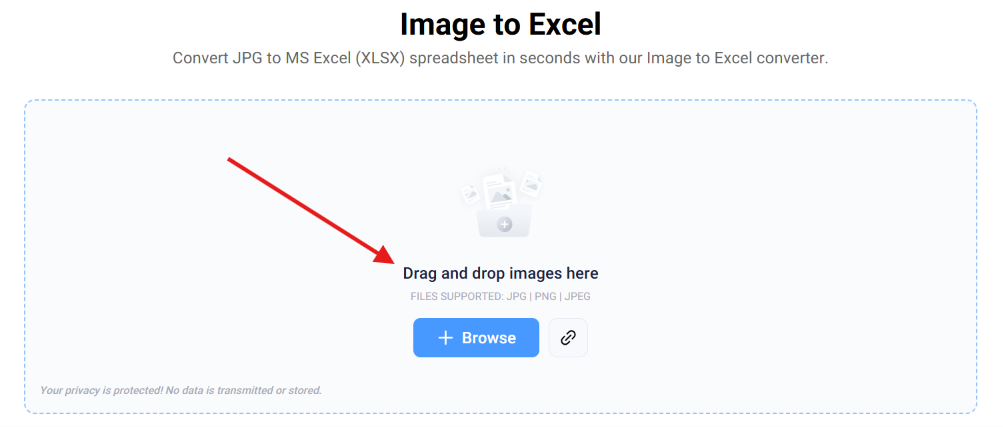
Once the image is uploaded successfully, simply click on the “Convert” button at the bottom right of your screen (you may also crop the image before converting it to remove any unnecessary portions).
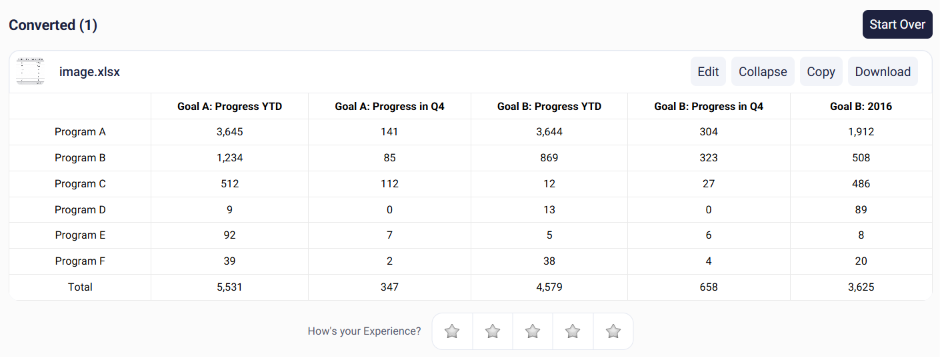
The extracted data can be copied or downloaded through its respective buttons. You may also edit and make any necessary changes before downloading the data as an xlsx file. And if the conversion wasn’t accurate, you may start over.
This method works best when:
You don’t have an active Microsoft 365 subscription or the “Data From Picture” option is missing in your version of Excel.
You only have your phone (no pc/laptop).
You need to convert multiple images at once.
You want to quickly extract data online without installing any software on your computer.
Limitations:
This method doesn’t work offline, so you require an active internet connection for it.
The final output may require a few manual tweaks, as the online converters are OCR-based. This means that the accuracy of the final output depends on how clear the input image is and how well the OCR recognized the visible characters.
The Accuracy Audit (After conversion)
No matter which method you decide to go with, treat every converted image as a draft until you verify all the information. OCR is getting more and more efficient. But it doesn’t mean that it is always accurate.
You must run the following five point check. It takes just a few minutes and saves hours of effort.
Cross check the totals. If the table includes a sum or subtotal row, recalculate it in Excel.
Verify dates and symbols. These are frequently mangled or dropped. A misread “2024” as ‘2021’ or a lost “$” may change the meaning of a table.
Hunt the classic confusions. Search for 0/O, 1/l, 5/S, and 8/B and similar characters, as OCR may confuse them, especially in codes/tickers/identifiers.
Review headers and boundaries. Confirm all the rows and columns landed accurately and that page footers, captions, or source lines didn’t become phantom data rows at the bottom.
Cite the copied tables properly (when used in academic work). If the table was captured from a textbook, journal, or an article, it doesn’t mean that it has become yours after conversion. You still need to give credit to the original author/source.
Concluding it
The process of turning a tabular image into editable data is straightforward. The conversion itself just takes a few minutes with either Excel’s built in feature or an online converter.
What actually separates a student who gets the best results from the one who gets burned in the process is everything around conversion. Prepare the image properly. Choose the method that really fits your needs and never forget to audit the extracted data.
When you closely follow each step of the process, no case study table, journal figure, or lecture slide will ever cost you a retyping session again!