How a Handwriting to Text Converter Can Help Students Study Smarter
Learn how to convert handwritten notes into editable digital text using handwriting to text converters. Explore benefits, uses, and accuracy tips.
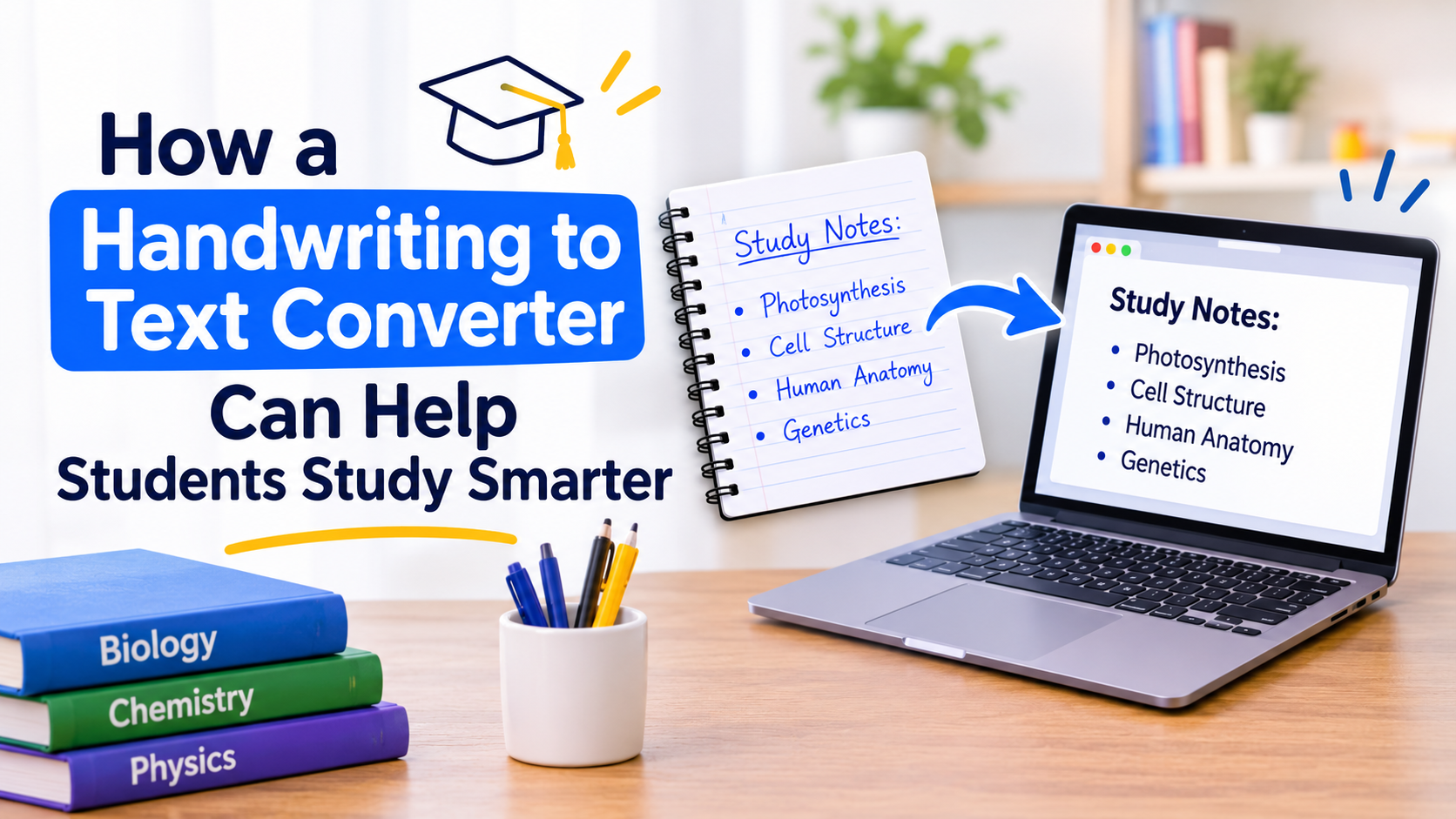
Taking notes by hand is still a common way to learn. Writing during a lecture can help you follow the lesson and record the points you want to remember. The trouble often starts later, when you need to find one definition in a full notebook, share a page with a classmate, or prepare notes for an exam.
A handwriting to text converter can make that work easier. It turns a photo or scan of handwritten notes into text you can copy, edit, and search. You can keep writing by hand and still have a digital copy to use when you study. Students can also explore different ways to digitize and organize study materials so their important notes remain accessible and easy to manage.
Here is what these tools do, how students can use them, and what to check before relying on the converted text.
What Is a Handwriting to Text Converter?
A handwriting to text converter is a tool that reads writing in a photo or scanned page and turns it into digital text. Many tools use optical character recognition (OCR) to identify text in an image. Handwriting recognition is the part that helps the software read letters and words written by hand.
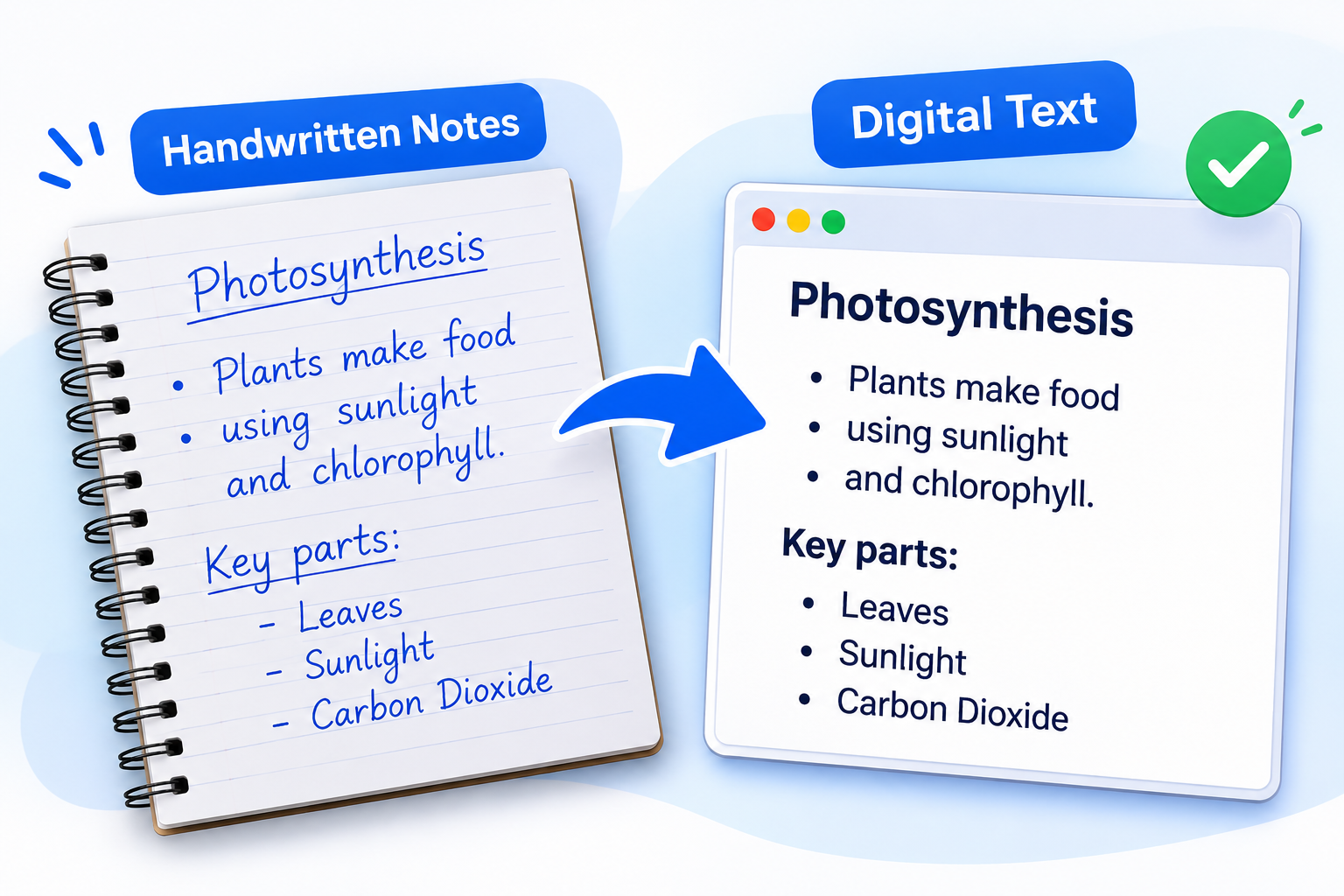
For example, you could take a clear photo of a page of biology notes, upload it to a converter, and get text that you can copy into a document. Depending on the tool, you may receive plain text or an output that keeps some headings and line breaks.
These tools are available as online converters, note-taking apps, document-scanning apps, and features inside larger productivity programs. Their results can vary, especially when handwriting is difficult to read, so it is worth testing a sample page before converting a whole notebook.
8 Ways a Handwriting to Text Converter Helps Students
1. Keep Study Notes in One Place
Notes from different classes can end up in separate notebooks, loose sheets, and folders. Once you convert them into digital files, you can sort them by subject or topic. For example, a biology student might create separate documents for cell biology, genetics, anatomy, and ecology.
You can store those files in Google Docs, Microsoft Word, or a note-taking app. Add clear titles so you know what each document contains.
2. Find Topics Without Turning Every Page
Searching through a notebook for one definition can take longer than expected. Digital text is easier to search. If you need to review chemical bonding, for example, search for that phrase in your converted notes instead of checking every page.
This is most useful when your notes cover a full semester, and you remember the topic but not the date of the lecture.
3. Make Flashcards and Practice Questions
After converting your notes, you can copy key facts into a flashcard app or make a short list of practice questions. A page about a historical event might become questions about its date, people involved, causes, and results.
Writing questions yourself can also help you notice which parts of a topic you do not understand. If you use an app to suggest questions, compare them with your original notes before studying.
4. Share Notes With Classmates
A photo of a notebook page can be hard to read, especially if the lighting is poor or the handwriting is small. Text is often easier to share in a group document, email, or class chat.
For example, if a classmate misses a lecture, you can send the converted notes and let them search for the section they need. Check the text first so you do not pass along recognition mistakes.
5. Edit and Add to Your Notes
Handwritten lecture notes are often brief because you are trying to keep up with the teacher. You might use abbreviations or leave out an example that you plan to add later.
A digital copy is easier to update. Correct spelling, expand short explanations, add textbook examples, and move sections into a clearer order. Keep the original page too, especially if it includes diagrams or symbols.
6. Connect Notes With Lecture Recordings
If you record lectures with permission, you can keep the recording alongside your converted notes. Add a timestamp beside a topic so you can return to the right part of the lesson without listening to the whole recording.
This can be useful when a teacher explains a difficult process or works through an example step by step. Follow your school’s rules and get any required permission before recording a class.
7. Open Your Notes on Different Devices
If you save your notes in an app or cloud folder that syncs across devices, you can review them on a phone, tablet, or laptop. That can be handy when you do not have your notebook with you.
Keep a backup of important files as well. Do not rely on a single device or account for work you cannot afford to lose.
8. Use Translation and Dictionary Tools
If you study in more than one language, digital text can be easier to look up than handwriting. You can copy an unfamiliar word into a dictionary or translate a sentence to help you understand it.
Be careful with subject-specific terms. A translation may not keep the exact meaning of a scientific or technical word, so check it against your textbook or teacher’s explanation.
How to Convert Handwritten Notes Into Digital Text
The steps are much the same with most online converters. The names of buttons and supported files may differ, so check the instructions on the tool you choose.
Take a clear photo or scan. Keep the whole page in the frame and make sure the writing is in focus.
Open a handwriting to text converter and upload the image or document. Check which file types the tool accepts.
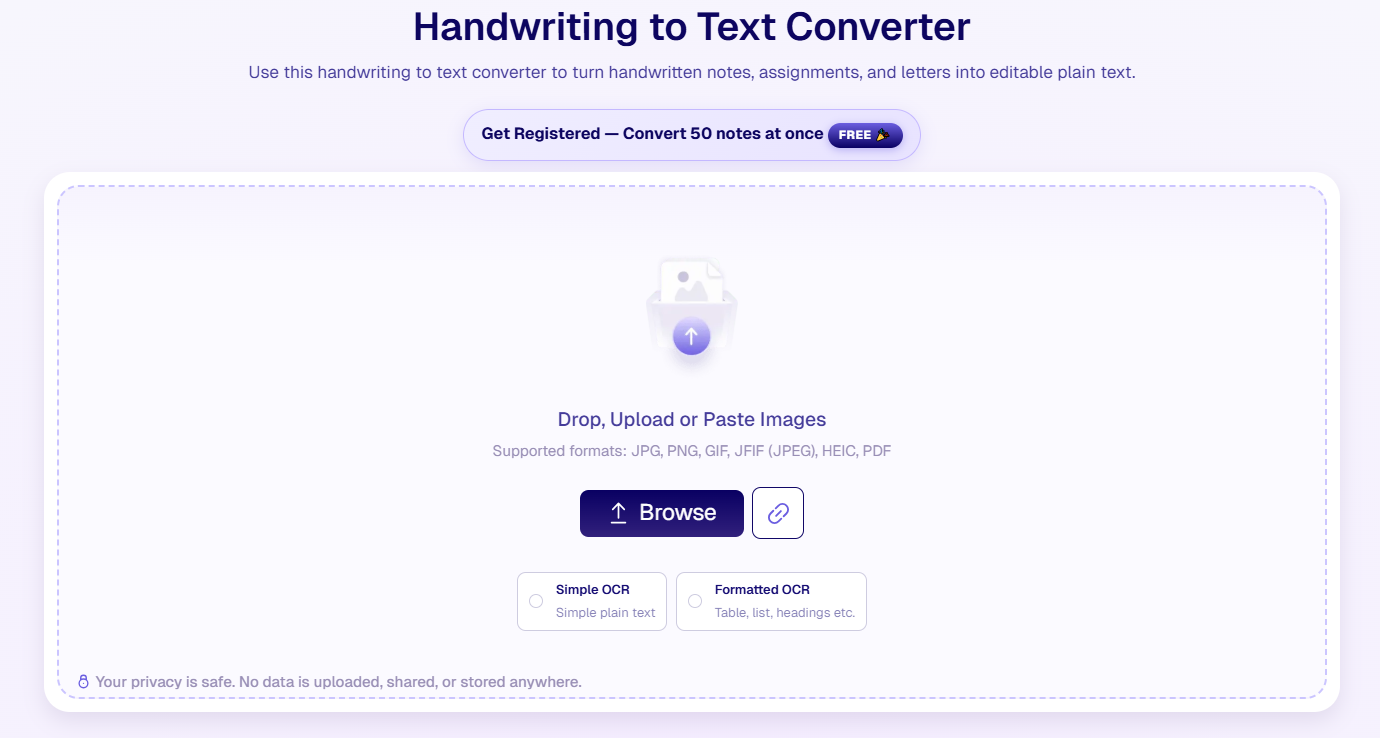
Start the conversion. Wait for the tool to process the page.
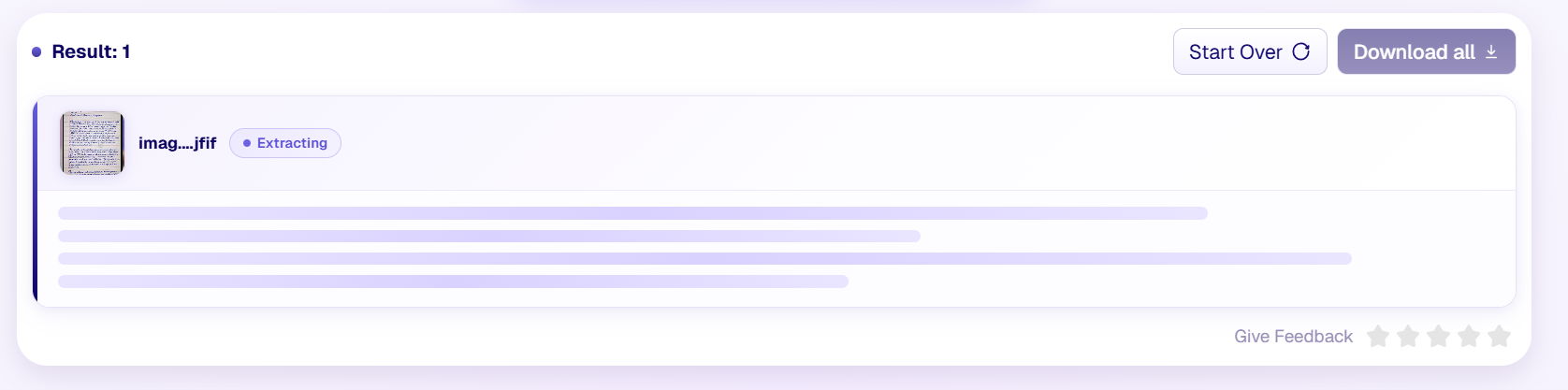
Read through the result while comparing it with your original notes. Check names, numbers, dates, formulas, and subject terms.
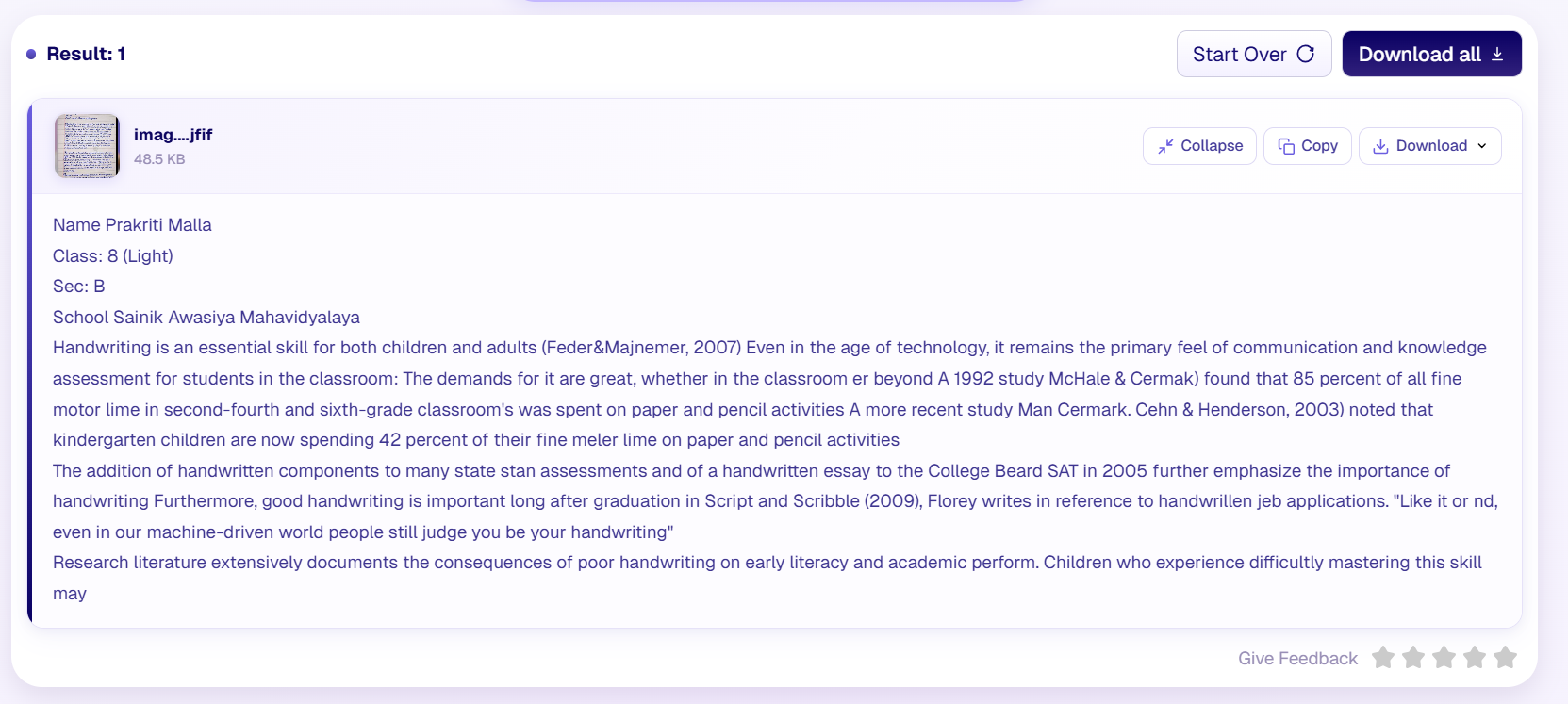
Copy or download the corrected text. Save it in a folder with a clear subject and topic name.
Tips for Better Handwriting Recognition
A clear image gives a converter a better chance of reading your notes correctly. These small steps can help:
Use good lighting. Avoid shadows, glare, and dark corners across the page.
Hold the camera straight above the paper. A steep angle can distort letters and spacing.
Make sure the image is sharp. Tap to focus before taking the photo, or use a scanner.
Choose pages with clear contrast. Dark writing on light paper is usually easier to read.
Keep lines and words separate where possible. Crossed-out text, arrows, and crowded notes may be read incorrectly.
Check language support. Test a page first if your notes use more than one language or script.
Proofread the result. Pay close attention to numbers, dates, names, formulas, and similar-looking letters.
What a Handwriting to Text Converter May Not Get Right
A converter can save typing time, but it should not be treated as a perfect copy of your notebook. Review the result before using it for assignments or exam revision.
Messy or Cursive Handwriting
Connected letters, unusual letter shapes, cramped spacing, and personal abbreviations can be difficult to read. The tool may replace a word, join two words, or leave something out. Correct these errors by checking the original page.
Maths, Formulas, and Scientific Symbols
Fractions, exponents, chemical formulas, Greek letters, and signs can be misread. A small change to a plus or minus sign can change the meaning of an equation. If the converter does not handle these clearly, keep the equation as an image and type it separately.
Diagrams, Tables, and Page Layout
A page may use arrows, boxes, diagrams, or notes in the margins to show how ideas connect. A converter might extract the words but lose those relationships. Keep the original page when its layout matters.
Formatting and Language Differences
Highlights, colors, underlining, and spacing may not appear in the converted text. Results can also vary by language and writing system. Check the tool’s language support and expect to tidy the text after conversion.
What to Look for in a Handwriting to Text Converter
Before choosing a tool, try it with a page that looks like the notes you usually write. Then compare the result and check these points:
Handwriting support: Does it recognize handwriting, or is it mainly intended for printed text?
Language support: Does it work with the language and script in your notes?
File types: Can you upload the images or PDFs you already have?
Export options: Can you copy or download the extracted text?
Multiple pages: If you have a lot of notes, can you process more than one page at a time?
Ease of use: Are the upload, conversion, and download steps clear?
Privacy: Read the privacy policy to understand how uploaded files are processed, stored, and handled. Avoid uploading private or sensitive information unless you are comfortable with the policy.
Handwritten notes are useful during class, but paper can be difficult to search, edit, and share later. A handwriting to text converter gives you another way to work with those notes by turning a photo or scan into editable text.
You can use the digital copy to sort topics, find definitions, prepare flashcards, or share class notes. The result may need corrections, especially if the page contains cursive writing, formulas, or diagrams, so keep the original and check the extracted text.
You do not have to stop writing by hand. Keep the notebook that works for you, and make digital copies of the pages you want to find and use again.