APAAR ID for School Students: Creation, DigiLocker Download & Status
Learn the school-led APAAR process, role-based consent and PEN checks, DigiLocker downloads and status fixes, with practical privacy guidance.
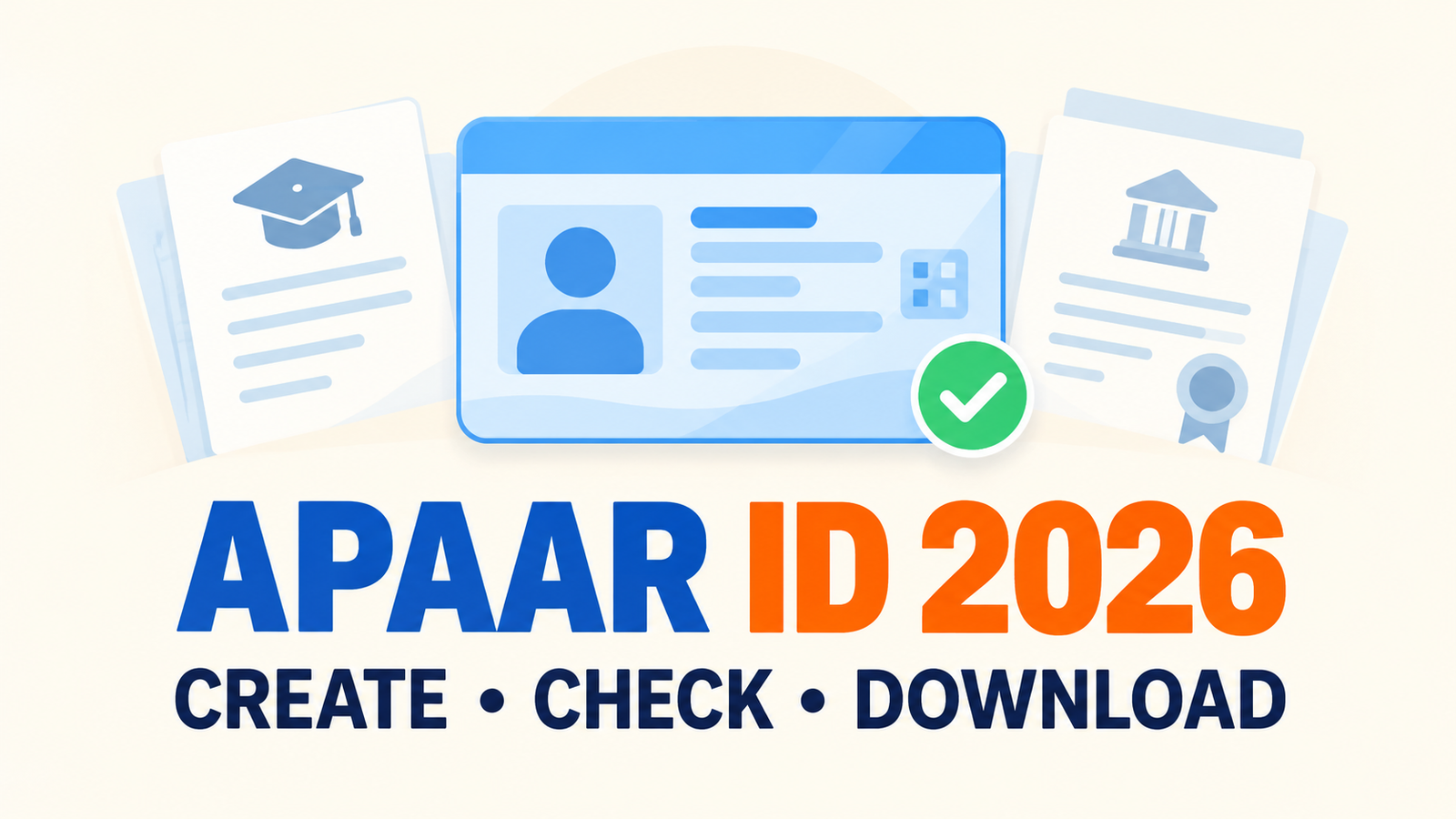
Official status checked 7 October 2026: APAAR’s FAQ says school students follow school verification, parental consent for a minor, authentication and ID creation through the school; the ID is then added to DigiLocker. The FAQ also requires a matching UDISE+ and Aadhaar name and a mandatory PEN. Ask the school to check the UDISE+ status if generation is delayed.
Hello students and parents! School students do not normally create an APAAR ID through a stand-alone public application form. The school verifies the student record in UDISE+, obtains the required consent for a minor, and initiates APAAR generation. After creation, the 12-digit APAAR ID can appear in the student’s DigiLocker under Issued Documents.
The official APAAR FAQs say that a valid Permanent Education Number (PEN) is required and that the student’s name in UDISE+ must match Aadhaar. Fixing those records first is safer than repeatedly trying unofficial websites.
APAAR Card 2026 - quick answer
What it is: A 12-digit academic identity linked to a student’s education records.
Who starts it for school students: The school through UDISE+.
Consent: Parent or guardian consent is required for a minor under the official process.
Key record: PEN is mandatory and the UDISE+ name should match Aadhaar.
Where to find it after creation: DigiLocker Issued Documents or through school status checking.
How the APAAR ID is created
The school explains the purpose and consent process to the student and parent.
The parent or guardian gives consent where required for a minor.
The school verifies the student’s PEN and demographic details in UDISE+.
The student name is checked against Aadhaar to prevent a mismatch.
The school submits the verified record for APAAR generation.
After successful creation, the APAAR ID is pushed to DigiLocker.
Do not upload Aadhaar or school records to a site that is not linked from the official APAAR, DigiLocker or education-authority route.
APAAR status by role
Who is checking? | What to confirm |
|---|---|
Parent or student | Consent, name and date-of-birth details, PEN and any mismatch reported by the school. |
School | UDISE+ source record, consent status, PEN, demographic verification and whether the request is generated, pending or failed. |
Student with an issued ID | DigiLocker Issued Documents, the displayed name and the privacy of the 12-digit identifier. |
This is a checking route, not a replacement for the school’s UDISE+ access. Ask the school which source record needs correction before submitting anything again.
Documents and details to keep ready
Student’s name exactly as recorded in Aadhaar
Date of birth and gender details used by the school
Permanent Education Number recorded in UDISE+
Parent or guardian consent form where applicable
Mobile number used for DigiLocker access
How to download APAAR from DigiLocker
Open the official DigiLocker app or website.
Sign in using the student’s linked account details.
Open Issued Documents.
Look for the APAAR or academic identity document.
Open it, verify the student’s name and ID, and save a secure copy if needed.
If the school says the ID is generated but it is missing in DigiLocker, first confirm the account and linked mobile details. Ask the school to recheck the APAAR status in UDISE+ rather than creating a second identity.
How to check APAAR status
Ask the school whether the UDISE+ request shows generated, pending or failed.
Check DigiLocker Issued Documents after the school confirms generation.
If pending, confirm whether consent, PEN or demographic verification is incomplete.
If failed, correct the source record before the school retries.
Common errors and the correct fix
Name mismatch: Compare Aadhaar and UDISE+ spelling; use the proper correction route for the inaccurate source.
PEN missing: Ask the school to verify the student’s UDISE+ record.
Consent not recorded: Complete the school’s official consent step.
DigiLocker document missing: Confirm generation status and linked account details.
Duplicate request: Stop and ask the school to check the existing ID before submitting again.
Privacy and consent checks for parents
Read the consent form before signing.
Ask which record is being verified and why.
Keep a copy of the consent or acknowledgement.
Do not post the 12-digit APAAR ID or Aadhaar details in public groups.
Use the school’s official contact for correction requests.
Academic support after your records are ready
APAAR is a record tool, not a coaching service. If a student also needs structured school-study support, coaching is optional: compare the exact class, board, teacher, timetable, doubt support, practice access and total fee before enrolling. Vedantu and Physics Wallah are examples to inspect, not recommendations; a general profile does not establish the terms of an individual batch.
Read more technology articles on EdTechPulse
EdTechPulse covers education-technology news, learning apps, privacy and practical digital-learning guides. Its education-technology coverage can help parents understand the tools around digital records, but the official APAAR portal and school remain the authority for this ID.
Read more useful AcademyCheck guides
Frequently asked questions
Can a school student create APAAR alone?
The normal school process is initiated through UDISE+ after verification and required consent.
Is PEN required?
Yes. The official FAQs state that PEN is mandatory for APAAR generation.
Where can I download the ID?
After generation, check the student’s DigiLocker Issued Documents.
What causes generation failure?
Common reasons include name mismatch, missing PEN, incomplete consent or inaccurate source records.
Should I share the APAAR number publicly?
No. Treat it as a personal academic identifier and share it only through authorised education processes.
Ask your school to verify consent, PEN and the source record, then check DigiLocker after generation. Correct a mismatch through the school before retrying. Keep the student’s identifiers private. Wishing you a smooth record update!
Official APAAR resources
Visit website: AcademyCheck
Student Support: +91-9958077034
Academy Support: +91-9958077034
New on AcademyCheck: we recently launched AcademyCheck Courses, where students can compare courses by fees, mode, support and other criteria in one place before purchasing. Explore AcademyCheck Courses.
For more such informative articles and details, please visit our StudySpace profile.